
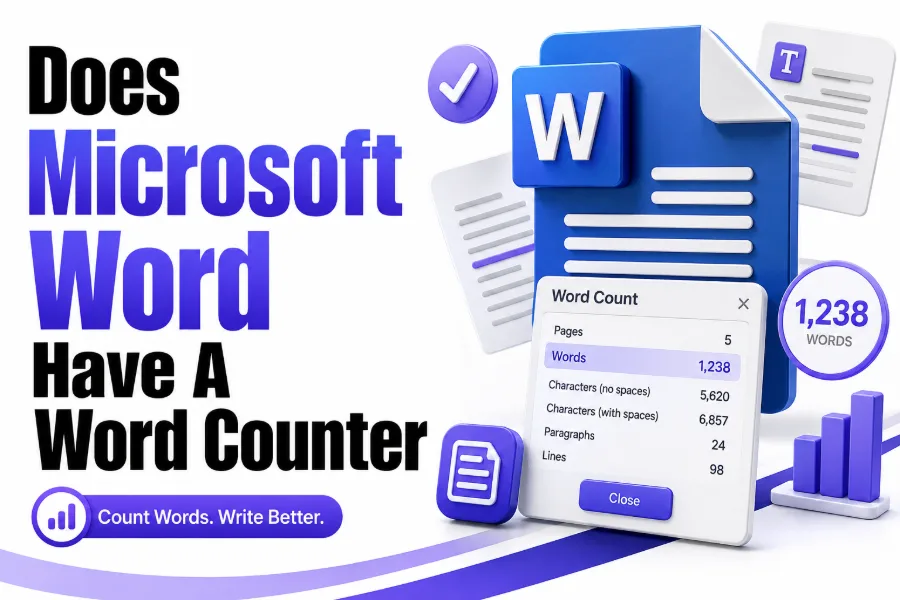
Yes, Microsoft Word has a built-in word counter that helps users track the number of words in a document. It works automatically while you write, so you do not need to install another tool or manually count your content.
The word counter is useful for students, writers, bloggers, editors, business users, and anyone working with a required word limit. Whether you are writing an essay, article, report, proposal, or manuscript, Word makes the count easy to find.
The feature is simple, but many users miss it because it sits quietly in the status bar. Once you know where to look, checking your word count becomes a natural part of writing and editing inside Microsoft Word.
Word Count Location in Microsoft Word
The easiest place to find the word counter is at the bottom of the Word window. The status bar usually displays the current word count beside page information, language settings, and other document details.
If the word count does not appear, the status bar may be customized or hidden. In most desktop versions, right-clicking the status bar lets you turn the Word Count option back on quickly without changing the document.
Clicking the word count opens a larger statistics box. This box gives more detail than the status bar, including pages, words, characters, paragraphs, and lines, which can be useful for formatting and publishing needs.
Quick Word Counter Checklist
- Open your document in Microsoft Word.
- Look at the bottom status bar.
- Find the word count beside the page count.
- Select text to count only one section.
- Click the word count for detailed statistics.
- Enable Word Count from the status bar if it is hidden.
Using the Status Bar for Live Word Count
The status bar word count updates as you type, delete, paste, or edit content. This makes it helpful when you are trying to stay close to a target length without opening extra menus repeatedly.
For example, if you are writing a 1,000-word blog post, you can keep an eye on the bottom of the screen. The number changes naturally as your draft grows, helping you manage length without breaking your writing flow.
This live counter is especially useful for assignments, article briefs, guest posts, social content drafts, and business documents. It keeps word count visible while allowing you to focus mainly on writing, structure, and clarity.
Opening the Full Word Count Box
The full Word Count box gives a more complete view of your document statistics. You can open it by clicking the word count in the status bar or by using the Word Count option under the Review tab.
This detailed box is helpful when your project has more than a simple word limit. Some editors, teachers, or platforms may also care about character count, paragraph count, page count, or line count.
Inside the Word Count box, you may also see an option related to textboxes, footnotes, and endnotes. This matters when your document includes extra content outside the main body, such as references, captions, or supporting notes.
Word Count Box Usually Shows
| Statistic | Why It Matters |
|---|---|
| Pages | Helps estimate document length and print size |
| Words | Tracks essay, article, or report length |
| Characters with spaces | Useful for meta descriptions and platform limits |
| Characters without spaces | Helpful for strict publishing rules |
| Paragraphs | Useful for formatting and readability checks |
| Lines | Helpful for scripts, legal text, and layout checks |
Counting Selected Text Only
Microsoft Word can count a selected part of your document instead of the entire file. You simply highlight the section you want to measure, and the status bar shows the selected word count along with the full document count.
This is useful when one section has a separate word limit. For example, a university assignment may require a 250-word abstract, a 1,500-word body, and a short conclusion with a specific length.
Selected text counting also helps editors review introductions, summaries, headings, captions, and author bios. Instead of copying text into another counter, you can check a section directly inside the Word document.
Counting Characters in Microsoft Word
Microsoft Word does more than count words. It also counts characters, which is important for SEO writing, social media posts, meta descriptions, titles, ad copy, form fields, and short professional summaries.
To see character count, open the Word Count box. You can usually view characters with spaces and characters without spaces, giving you better control depending on the platform or publishing requirement.
For SEO work, character count can be as important as word count. Meta titles, meta descriptions, and snippets often need careful length control, so checking characters inside Word can save time during editing.
Useful Internal Resources
For faster online checking, you can also use a dedicated word counter when writing outside Microsoft Word. If you need SEO title or description length control, a character counter can help keep content within limits.
Word Count in Word for the Web
Word for the web also includes word counting while you type. This is useful for users who work in a browser, collaborate online, or edit documents stored through Microsoft cloud services.
The web version may look slightly different from the desktop app, but the basic purpose is the same. You can view word count from the lower part of the editing window while working on your document.
If you do not see the count, make sure the document is in editing mode. Some viewing or reading modes may limit visible editing tools, so switching back to editing view can make the counter appear.
Word Count on Mac Versions of Word
Microsoft Word for Mac also supports word count. Like the Windows version, it can show words in the status bar and open a detailed Word Count box for more document statistics.
Mac users often find the feature through the status bar or menu options. The exact interface may vary slightly by version, but the core function remains familiar and easy to use.
This makes Word reliable across different devices. Whether you write on Windows, Mac, or in a browser, the basic word counting experience is designed to support everyday writing tasks.
Word Counter Benefits for Students
Students often need to follow strict word limits for essays, reports, summaries, research papers, and personal statements. Microsoft Word’s counter helps them stay within those limits without guessing.
A visible word count also makes editing easier. If a paper is too short, the student can expand weak sections. If it is too long, they can cut repetition and improve sentence clarity.
The feature also helps with planning. Students can divide the target word count across introduction, body sections, and conclusion, making the writing process more organized and less stressful.
Student Writing Example
A 1,500-word essay can be planned like this:
- Introduction: 150 to 200 words
- Background section: 250 to 300 words
- Main argument one: 300 words
- Main argument two: 300 words
- Main argument three: 300 words
- Conclusion: 150 to 200 words
This type of simple planning helps the final document feel balanced.
Word Counter Benefits for Bloggers and SEO Writers
Bloggers and SEO writers often work with content briefs that include word count targets. A blog may need 800, 1,500, or 2,000 words depending on topic depth, competition, and search intent.
Microsoft Word helps writers draft content before publishing it in WordPress, Google Docs, or another content management system. The live word counter makes it easier to shape the article before final formatting.
SEO writers also need to manage meta titles, meta descriptions, headings, introductions, and FAQs. Word’s character and word statistics are helpful, although many writers still use online tools for final SEO checks.
Word Counter Benefits for Business Documents
Business users can use Word’s word counter for proposals, reports, executive summaries, cover letters, resumes, manuals, and internal documents. Clear length control often makes professional writing easier to read.
A report that is too long can lose attention. A proposal that is too short may feel incomplete. Word count helps writers find a practical balance between enough detail and unnecessary length.
For business communication, the counter also supports consistency. Teams can follow similar lengths for bios, service pages, case studies, product descriptions, and company profiles, making brand content feel more organized.
Word Count and Readability
Word count is not only about meeting a limit. It also affects readability, pacing, and user experience. A short document may feel direct, while a longer one can explain ideas in more depth.
However, more words do not always mean better content. A strong article uses enough words to answer the topic clearly, while removing filler, repetition, and vague sentences that do not help the reader.
Microsoft Word’s counter gives a useful measurement, but quality still depends on structure, clarity, examples, and editing. Writers should use word count as a guide, not as the only sign of good writing.
Better Editing Habits
| Editing Goal | What to Check |
|---|---|
| Too short | Add examples, explanations, or missing points |
| Too long | Remove repeated ideas and weak sentences |
| Hard to read | Shorten long paragraphs and simplify wording |
| Poor structure | Add clear headings and logical section flow |
| Weak SEO | Improve headings, keyword placement, and intent match |
Word Count for Selected Sections and Headings
Modern content often includes many small sections, so selected word count becomes very useful. You may want to check only an introduction, one heading, a product description, or a short summary.
This helps when different parts of the content have different roles. For example, an introduction should be short and inviting, while a main guide section may need more detail and examples.
Using selected text count also improves editing speed. Instead of estimating paragraph length by sight, you can highlight a section and instantly know whether it needs trimming or expansion.
Common Reasons Word Count Looks Different
Sometimes Microsoft Word’s count may not match another tool exactly. This can happen because different tools may count symbols, hyphenated terms, numbers, footnotes, textboxes, or special formatting differently.
For normal writing, the difference is usually small. However, for strict academic or publishing rules, you should check whether footnotes, endnotes, captions, tables, and references are included in the required count.
If your teacher, client, or publisher has specific instructions, follow their rule first. Word gives a strong estimate, but final requirements may depend on how the receiving platform defines countable text.
Microsoft Word Compared With Online Word Counters
Microsoft Word is excellent for writing, formatting, editing, and basic counting. It gives enough information for most essays, articles, reports, and general documents without requiring a separate website or plugin.
Online word counters can still be useful when you need quick checks outside Word. Many online tools also show keyword density, reading time, sentence count, paragraph count, and social media limits.
The best choice depends on your workflow. If you are already writing in Word, the built-in counter is usually enough. If you are editing web content, an online counter may offer extra SEO-focused details.
Best Use Cases
- Use Microsoft Word for essays, reports, books, letters, and formatted documents.
- Use an online word counter for quick browser-based content checks.
- Use a character counter for SEO snippets and platform limits.
- Use both tools when a client or publisher has strict requirements.
Tips for Managing Word Count Better
Start with a target before you write. If you know the expected length, you can plan your headings and sections more clearly instead of cutting large parts after finishing the draft.
Use the word counter during editing, not every few seconds while drafting. Checking too often can slow creativity, while checking at natural editing points helps you stay focused and productive.
When reducing word count, cut repeated phrases first. When increasing word count, add useful examples, definitions, steps, comparisons, or explanations instead of adding empty filler that weakens the content.
Final Answer for Microsoft Word Users
Microsoft Word does have a word counter, and it is one of the easiest built-in tools for tracking document length. It appears in the status bar and can also open a detailed statistics box.
The tool works for full documents and selected text, which makes it useful for essays, blogs, reports, resumes, proposals, and SEO content drafts. It also helps with characters, pages, paragraphs, and lines.
For most users, Word’s counter is enough. For advanced SEO or publishing work, combining it with a dedicated online counter can provide extra checks before uploading or submitting the final content.
Conclusion
Microsoft Word makes word counting simple, practical, and accessible for everyday writing. It helps users manage document length, selected sections, character limits, and formatting needs without leaving the writing workspace.
The feature is especially useful for students, bloggers, SEO writers, editors, and business professionals. It supports better planning, cleaner editing, and stronger control over content length from draft to final version.
So, does microsoft word have a word counter? Yes, it does, and it is built directly into the program. You can use it from the status bar or open the full Word Count box for more detailed statistics.
FAQ
Does Microsoft Word show word count automatically?
Yes, Microsoft Word usually shows the word count automatically in the status bar at the bottom of the document. If it is missing, you can often enable it by right-clicking the status bar and selecting Word Count.
Can Microsoft Word count selected text only?
Yes, Microsoft Word can count selected text only. Highlight the part you want to check, and the status bar will show the selected word count along with the total count for the full document.
Does Microsoft Word count characters too?
Yes, Microsoft Word can count characters as well as words. Open the Word Count box to see characters with spaces, characters without spaces, pages, paragraphs, and lines, depending on your Word version.
Why is my Word count different from another tool?
Word count can differ because tools may handle hyphenated words, symbols, footnotes, captions, tables, or special formatting differently. For strict submissions, follow the counting rules given by your teacher, client, or publisher.
Is Word’s built-in counter enough for SEO writing?
Word’s counter is useful for drafting SEO content, but online tools can add extra checks like keyword density, reading time, and snippet length. Many writers use Word first, then verify final content with SEO tools.